Free Batch Geocoding: How to Geocode a CSV File in 5 Minutes
Learn how to batch geocode a CSV file for free. Handles comma, semicolon, and tab delimiters from any country. Step-by-step guide. 100 rows/day free.
Batch geocoding is the process of converting a list of street addresses into geographic coordinates — latitude and longitude — in a single operation. You upload a CSV file with hundreds or thousands of rows, and get back the same file with lat/long columns appended to every row. No manual lookups, no copying coordinates one at a time.
CSV files are the most universal data format on Earth. They predate the internet, personal computers, and every other exchange format still in use today — IBM introduced comma-separated output in 1972. But CSV is also one of the most inconsistent formats: over 100 countries use semicolons instead of commas, encoding varies by region, and there is no governing standard body. This guide shows you how to geocode any CSV file regardless of its format, for free, in under five minutes.
What Is Batch Geocoding?
Geocoding converts a human-readable address ("350 5th Ave, New York, NY 10118") into a pair of decimal numbers (40.7484, -73.9857) that pinpoint that location on the planet. "Batch" means doing this for many addresses at once — tens, thousands, or hundreds of thousands — instead of one at a time.
When you batch geocode a CSV file, the geocoding engine reads each row, parses the address components (street, city, state, postal code, country), matches them against a database of known addresses, and returns coordinates along with a confidence score. A score of 1.0 means the geocoder matched your address to a specific building — rooftop-level accuracy. The output preserves every column from your original file and adds the geocoded data alongside it.
Understanding CSV Formats Around the World
Before uploading your file, it helps to understand what kind of CSV you actually have. The three letters "CSV" suggest a simple format — comma-separated values — but in practice, CSV files vary dramatically depending on where they were created, what software exported them, and what language the operating system was set to.
Delimiters: It Is Not Always a Comma
Over 100 countries — including Germany, France, Italy, Spain, Brazil, Russia, and most of continental Europe and Latin America — use a comma as the decimal separator (writing 1.234,56 instead of 1,234.56). In these countries, using a comma as a field delimiter would create chaos. So their software uses semicolons instead. When a German user clicks "Save as CSV" in Excel, the output uses semicolons — but the file extension is still .csv.
| Delimiter | Character | Where Used |
|---|---|---|
| Comma | , | US, UK, Australia, Canada (English), Japan, China, South Korea |
| Semicolon | ; | Germany, France, Italy, Spain, Netherlands, Brazil, Russia, Turkey, most of Europe and Latin America |
| Tab | \t | Unix/Linux exports, bioinformatics data, SAP systems (.tsv) |
| Pipe | | | US healthcare (HL7), financial data (EDI), mainframe exports |
CSV2GEO auto-detects the delimiter by analyzing the first few lines of your file, so you do not need to convert anything. Comma, semicolon, tab, and pipe-separated files all work out of the box.
Encoding: Why Special Characters Break
Addresses contain characters that do not exist in basic ASCII — German umlauts (München), French accents (Île-de-France), Portuguese tildes (São Paulo), Turkish dotless-i (İstanbul). If your CSV uses the wrong encoding, these characters turn into garbled symbols called mojibake.
| Encoding | Region | Notes |
|---|---|---|
| UTF-8 | Global standard (98% of web) | Handles every character. Default on Mac and Linux. Always prefer this. |
| Windows-1252 | Western Europe, Americas | Excel's default "ANSI" on Windows. Covers French, German, Spanish, but not Cyrillic or CJK. |
| Windows-1251 | Russia, Ukraine, Bulgaria | Still common in Russian government and banking CSV exports. |
| Shift_JIS | Japan | Legacy Japanese encoding. Excel Japan used this by default until recent versions. |
| GB18030 | China | Mandatory Chinese national standard. Used in government data exports. |
How to fix encoding: In Excel, choose "CSV UTF-8 (Comma delimited)" when saving — not plain "CSV." In Google Sheets, CSV export is always UTF-8 automatically. If you receive a file with garbled characters, open it in a text editor (VS Code, Notepad++), detect the encoding, and re-save as UTF-8.
How to Prepare Your CSV File for Geocoding
The quality of your geocoding results depends directly on the quality of your input. Here is a checklist before uploading:
- Separate address components into columns when possible — Street, City, State, Zip, Country. The geocoder works with combined addresses too, but separate columns produce 10-15% higher match rates.
- Always include a country column. "Springfield" exists in 34 US states and at least 5 countries. Without a country, the geocoder has to guess.
- Use a descriptive header row. Column names like "Street Address" and "City" allow the AI auto-detection to map your columns instantly — no manual setup needed.
- Remove blank rows between data. Sort your data and delete empty rows — they waste processing time and can cause row-count mismatches.
- Move non-address data out of address columns. Delivery instructions ("Ring doorbell"), suite numbers ("Suite 200"), and contact names ("c/o John Smith") confuse the address parser.
Here is an example of a well-structured CSV:
name,street_number,street,city,state,zip,country
City Hall,1,Dr Carlton B Goodlett Pl,San Francisco,CA,94102,US
Willis Tower,233,S Wacker Dr,Chicago,IL,60606,US
Space Needle,400,Broad St,Seattle,WA,98109,US
Fenway Park,4,Jersey St,Boston,MA,02215,US
Union Station,800,N Alameda St,Los Angeles,CA,90012,US
How to Batch Geocode a CSV File for Free (Step by Step)
This tutorial uses CSV2GEO, which processes CSV files directly in your browser. The free tier geocodes up to 100 rows per day — no credit card, no API key, no software to install.
Step 1: Upload Your CSV File
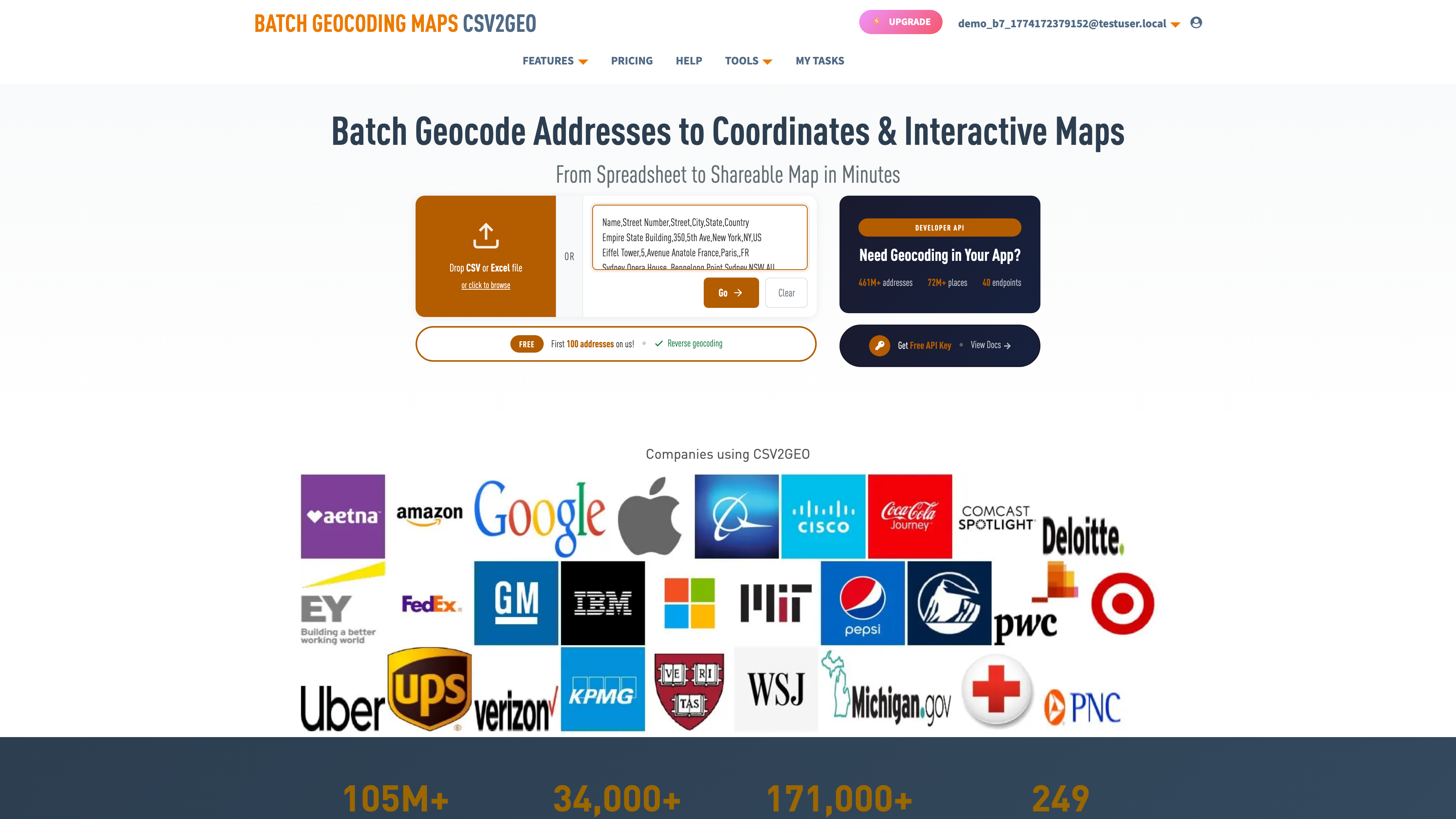
Go to csv2geo.com/batchgeocoding and drag your .csv file onto the upload area. You can also click "Browse" to select it, or paste data directly into the text area. Accepted formats: .csv, .xlsx, .xls, and .tsv — with any delimiter.
The file is parsed entirely in your browser. Your address data is not sent to any server until you explicitly click "Process." This means sensitive addresses — customer locations, employee homes, patient records — stay on your machine during the preview stage.
Step 2: Map Your Address Columns
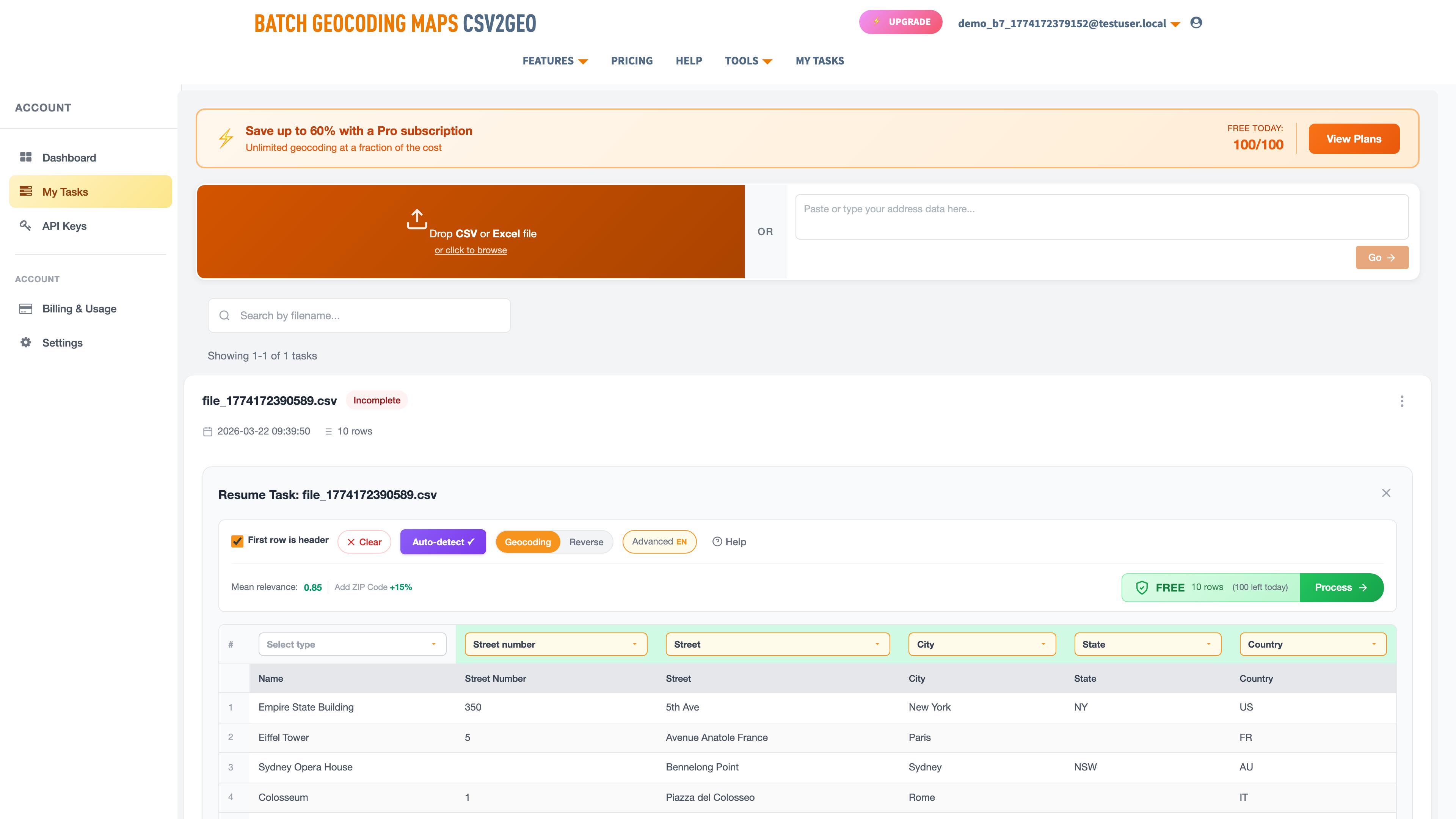
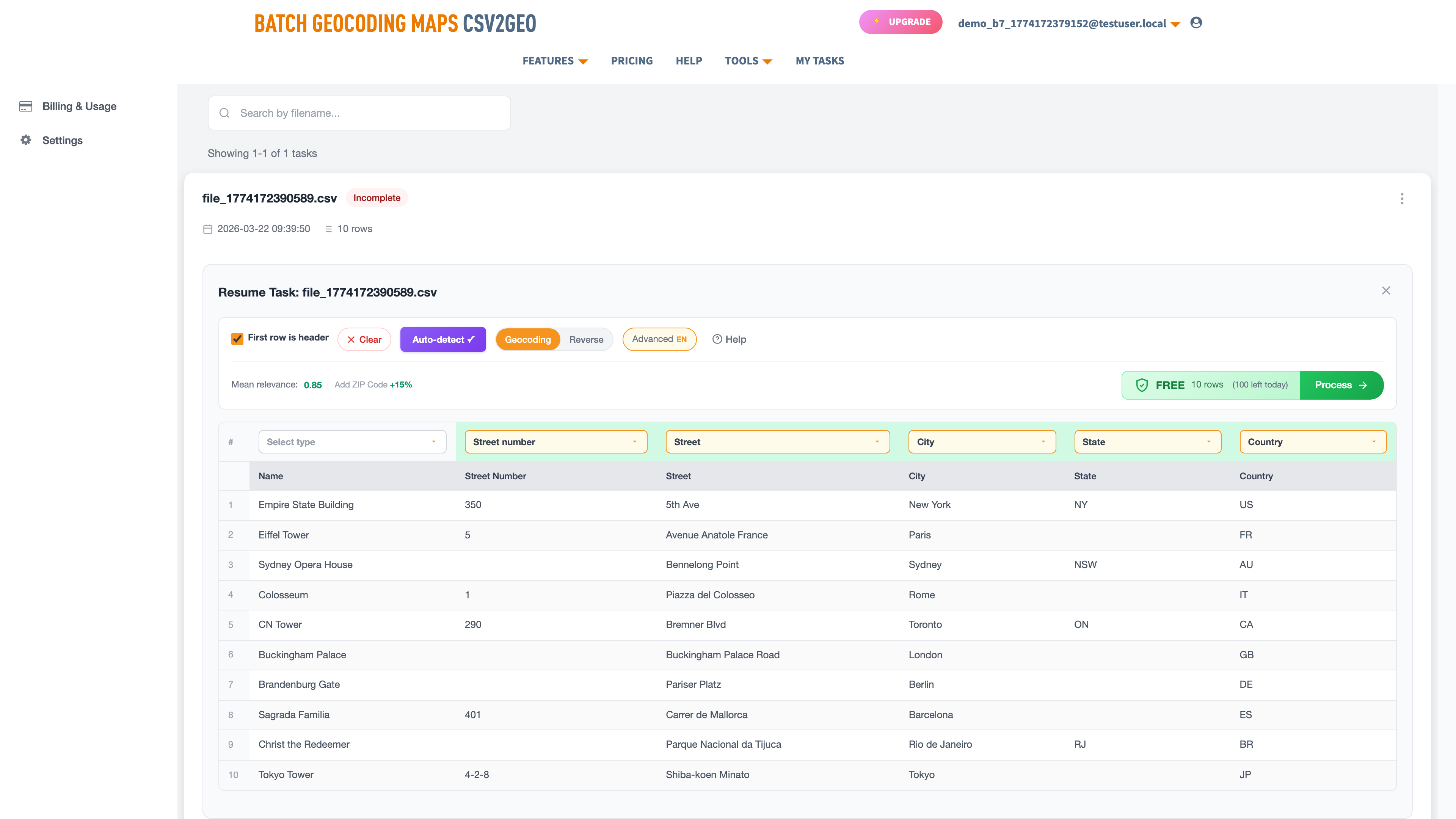
CSV2GEO displays your first ten rows in a data grid. An AI module reads your column headers and sample data to auto-detect which columns contain street numbers, street names, cities, states, postal codes, and countries. Green labels appear above each column showing the detected mapping.
If a column is tagged wrong, click the label and pick the correct type from the dropdown. You can also combine columns — if street number and street name are separate, map both as "Street" and they merge automatically. Set irrelevant columns to "Skip."
Step 3: Preview the First Ten Rows
Click "Process Data" to geocode only the first ten rows. This preview shows your original data plus new columns: latitude, longitude, formatted address, and a relevance score (0 to 1.0). A map also appears with pins — the fastest way to visually verify that coordinates land in the right locations.
If most rows score below 0.8, check your column mapping. A common mistake: city mapped as street, or country column missing entirely.
Step 4: Process the Full File and Download
Click "Get All Data" to geocode every row. Files with 100 rows or fewer are free. For larger files, pricing is displayed before you commit. Small files (under 50 rows) finish instantly; 1,000 rows take about two minutes; 100,000 rows take roughly 15 minutes in the background — you get an email when it is ready.
Download your results from My Tasks. The output is a CSV with all your original columns preserved plus the geocoded data at the end. Open it directly in Excel, Google Sheets, Python, R, or any data tool.
What the Output File Contains
| Output Column | Description | Example |
|---|---|---|
| Latitude | Decimal degrees, WGS84 | 37.7793 |
| Longitude | Decimal degrees, WGS84 | -122.4193 |
| House Number | Parsed street number | 1 |
| Street | Parsed street name | Dr Carlton B Goodlett Place |
| City | Parsed city | San Francisco |
| State | Parsed state/province | California |
| Postcode | Parsed postal code | 94102 |
| Country | Parsed country | United States |
| Formatted Address | Full structured address | 1 Dr Carlton B Goodlett Pl, San Francisco, CA 94102, US |
| Relevance | Match quality (0–1.0) | 1.0 |
Even if your input CSV lacks postal codes or state abbreviations, the geocoder fills them in. You get a fully parsed, standardized address structure as a bonus — useful for data cleaning beyond just coordinates.
CSV-Specific Issues That Affect Geocoding
CSV files have quirks that do not exist with Excel files. Here are the ones that actually affect geocoding results — and how to fix them.
Semicolon-delimited files from Europe. If you exported your CSV from Excel on a German, French, or Brazilian computer, the file uses semicolons as delimiters and commas as decimal separators. CSV2GEO auto-detects this, so you do not need to convert. But if another tool choked on your file before, this is probably why.
BOM (byte order mark) issues. Some Windows applications add invisible bytes (EF BB BF) to the start of UTF-8 CSV files. This can cause the first column header to not be recognized during auto-detection. If your first column is being skipped, open the file in VS Code or Notepad++ and save without BOM.
Addresses with commas inside. "350 5th Ave, Suite 200, New York" contains commas that can break CSV parsing if the field is not properly quoted with double quotes. Most spreadsheet exports handle this correctly, but manually created CSVs sometimes do not. If addresses are splitting across multiple columns in the preview, your fields need quoting.
Mixed line endings. Windows uses CRLF (\r\n), Mac and Linux use LF (\n). If a file was edited on multiple operating systems, it may have mixed line endings, causing phantom blank rows. Most modern tools handle this gracefully, but if you see unexpected empty rows, normalize the line endings in your text editor.
Numbers stored as text. Some CSV exports wrap postal codes in quotes ("02215") to prevent Excel from stripping the leading zero. CSV2GEO handles both formats — quoted and unquoted — so Boston's 02215 and San Francisco's 94102 both work correctly.
For Developers: Geocode CSV Data via API
If you need to geocode programmatically — inside a data pipeline, application, or Jupyter notebook — the CSV2GEO geocoding API provides 18 endpoints for forward geocoding, reverse geocoding, batch processing, places search, and boundary lookups. 1,000 free API requests per day.
curl "https://csv2geo.com/api/v1/geocode?q=1+Dr+Carlton+B+Goodlett+Pl,+San+Francisco&country=US&api_key=YOUR_KEY"Python SDK:
from csv2geo import Client

client = Client("YOUR_API_KEY")
result = client.geocode("1 Dr Carlton B Goodlett Pl, San Francisco", country="US")
print(f"Lat: {result.lat}, Long: {result.lng}, Score: {result.relevance}")
# → Lat: 37.7793, Long: -122.4193, Score: 1.0
Install with pip install csv2geo. Get your free API key at csv2geo.com/api-keys. The batch endpoint processes up to 10,000 addresses per request.
Frequently Asked Questions
What file formats does CSV2GEO accept?
CSV (.csv), Excel (.xlsx, .xls), and TSV (.tsv). CSV delimiters are auto-detected — comma, semicolon, tab, and pipe all work. You can also paste data directly into the text area. For Excel-specific guidance, see our Excel geocoding guide.
How many addresses can I geocode for free?
100 rows per day with file upload, 3,000 requests per day via API. Both reset every 24 hours. No credit card required for either.
My CSV uses semicolons, not commas. Will it work?
Yes. CSV2GEO auto-detects the delimiter. Semicolon-separated files from European versions of Excel work without any conversion. The same applies to tab-separated and pipe-separated files.
How accurate is the geocoding?
CSV2GEO provides rooftop-level accuracy for 744 million addresses across 200+ countries, with the deepest coverage in 41 countries. Every result includes a relevance score from 0 to 1.0 — a score of 1.0 means the coordinates point to the exact building.
Can I geocode addresses from any country?
Yes. CSV2GEO covers 200+ countries. The densest coverage is in the United States (121M addresses), Brazil (90M), Mexico (30M), France (26M), and Italy (26M). Addresses in other countries use fallback geocoding strategies.
What is the difference between forward and reverse geocoding?
Forward geocoding converts addresses to coordinates. Reverse geocoding converts coordinates to addresses. This guide covers forward geocoding. For the reverse direction, see our [Link: reverse geocoding guide | https://csv2geo.com/blog/reverse-geocoding-latitude-longitude-to-address] or use the [Link: reverse geocoding tool | https://csv2geo.com/reversegeocoding].
My CSV has accented characters (ü, ñ, ã). Will they work?
Yes, as long as your file is UTF-8 encoded. If characters appear garbled in the preview, your file is likely saved in a legacy encoding like Windows-1252. Re-save it as UTF-8 in Excel ("CSV UTF-8" format) or Google Sheets (always UTF-8 by default).
How long does processing take?
Small files (under 50 rows) process instantly. A 1,000-row file takes about two minutes. Files with 100,000+ rows take 10-20 minutes in the background — you receive an email when the results are ready.
Start Geocoding Your CSV File Now
Ready to convert your addresses to coordinates? Upload your CSV file and get latitude, longitude, and parsed address data for every row. The first 100 rows are free, every day — regardless of delimiter, encoding, or country of origin.
Working with Excel instead? See our Excel geocoding guide. For programmatic access, explore the geocoding API with 18 endpoints and 1,000 free requests per day.
Need help? Visit our Help center or contact us.
I.A.
CSV2GEO Creator
Related Articles
Use our batch geocoding tool to convert thousands of addresses to coordinates in minutes. Start with 100 free addresses.
Try Batch Geocoding Free →