Free Batch Geocoding for Excel: How to Convert Addresses to Coordinates
Geocode Excel files for free. Upload your .xlsx spreadsheet, auto-map address columns, and download lat/long coordinates. 100 rows/day free, no credit card.
Batch geocoding is the process of converting a list of street addresses into geographic coordinates — latitude and longitude — in a single operation. If you have an Excel spreadsheet with hundreds or thousands of addresses that need coordinates, doing them one at a time is not an option. You need a tool that reads your file, processes every row, and hands back a new spreadsheet with lat/long columns added.
This guide walks through the complete process of geocoding an Excel file for free. No code, no API keys, no credit card. You will upload a .xlsx file, map your address columns, preview the results, and download a geocoded file — all inside your browser. The entire process takes under five minutes for most files.
Why Geocode an Excel File?
Excel is where most address data lives. CRM exports, customer databases, property listings, survey responses, delivery manifests — they almost always come as .xlsx or .csv files. The addresses in those files are useful for mailing letters, but they are useless for mapping, routing, spatial analysis, or any application that needs to know where something actually is on the planet.
Geocoding bridges that gap. Once your addresses have latitude and longitude attached, you can plot them on a map, calculate distances between locations, build delivery routes, run proximity analyses, or feed them into any GIS tool. The coordinates are the raw material that makes geographic analysis possible.
Map Visualization
Plot customer locations, store networks, or property listings on interactive maps. Every mapping tool — Google Maps, Leaflet, QGIS, Tableau — requires coordinates, not street addresses.
Route Optimization
Delivery companies and field service teams need lat/long to calculate optimal routes. GPS routing engines do not accept "123 Main Street" — they need 40.7128, -74.0060.
Market Analysis
Identify geographic clusters in your customer base. Find underserved areas. Measure distance to competitors. All of this requires coordinates attached to your address data.
Real Estate & Insurance
Assess properties by location — flood zones, school districts, neighborhood comps. Geocoded coordinates let you overlay property data with geographic risk and value layers.
Academic Research
Spatial analysis of survey data, epidemiological studies, demographic research — researchers geocode addresses to analyze geographic patterns and correlations.
Data Enrichment
Append latitude, longitude, parsed city, state, postcode, and match confidence to every row. Turn a flat address list into a geographically enriched dataset.
What You Need Before Starting
Before uploading your file, take two minutes to check your data. The quality of your geocoding results depends directly on the quality of your input. Here is what to look for:
| Check | Why It Matters | How to Fix |
|---|---|---|
| Addresses in separate columns | Street, city, state, zip in their own columns gives the geocoder clear signals. One combined column works but is less precise. | Use Excel's Text to Columns feature (Data tab) to split combined addresses. |
| Country column included | Without a country, the geocoder has to guess. "Springfield" exists in 34 US states and 5 countries. | Add a column with ISO country codes (US, GB, DE) or full country names. |
| No empty rows in the middle | Blank rows between data rows waste processing and can cause row count mismatches. | Sort your data and delete blank rows. In Excel: Home → Find & Select → Go To Special → Blanks → Delete. |
| Header row present | The geocoder uses your header names to auto-detect which column is street, city, zip, etc. | Add descriptive headers: "Street", "City", "State", "Zip", "Country". |
| UTF-8 encoding | Addresses with accents (München, São Paulo, Zürich) need UTF-8 to survive upload intact. | Save As → CSV UTF-8, or keep as .xlsx (Excel files are UTF-8 by default). |
Pro tip: Name your columns clearly. If your header says "Street Address" instead of "col_7", the auto-detection will map it instantly and you can skip the manual column mapping step entirely.
How to Batch Geocode an Excel File for Free (Step by Step)
This tutorial uses CSV2GEO, which accepts Excel files directly — no conversion to CSV needed. The free tier processes up to 100 rows per day with no credit card and no account required to start.
Step 1: Upload Your Excel File
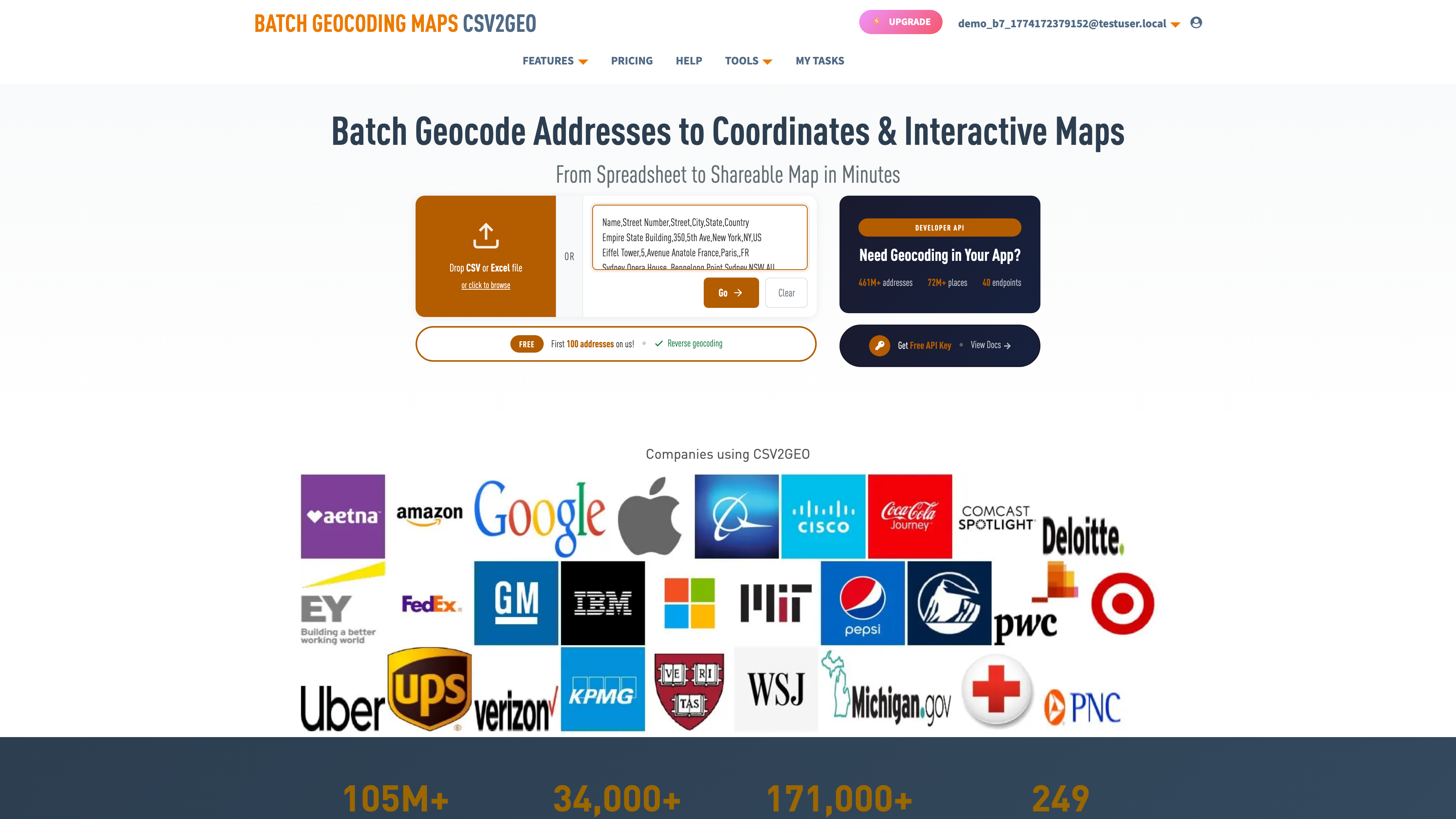
Go to csv2geo.com/batchgeocoding and drag your .xlsx file onto the upload area. You can also click "Browse" to select the file from your computer. Supported formats: .xlsx, .xls, .csv, and .tsv. There is no file size limit — we have processed files with over 500,000 rows.
The system reads your Excel file in the browser. Your data is not uploaded to any server at this point — the parsing happens locally, so sensitive address data stays on your machine until you explicitly choose to process it.
Step 2: Map Your Address Columns
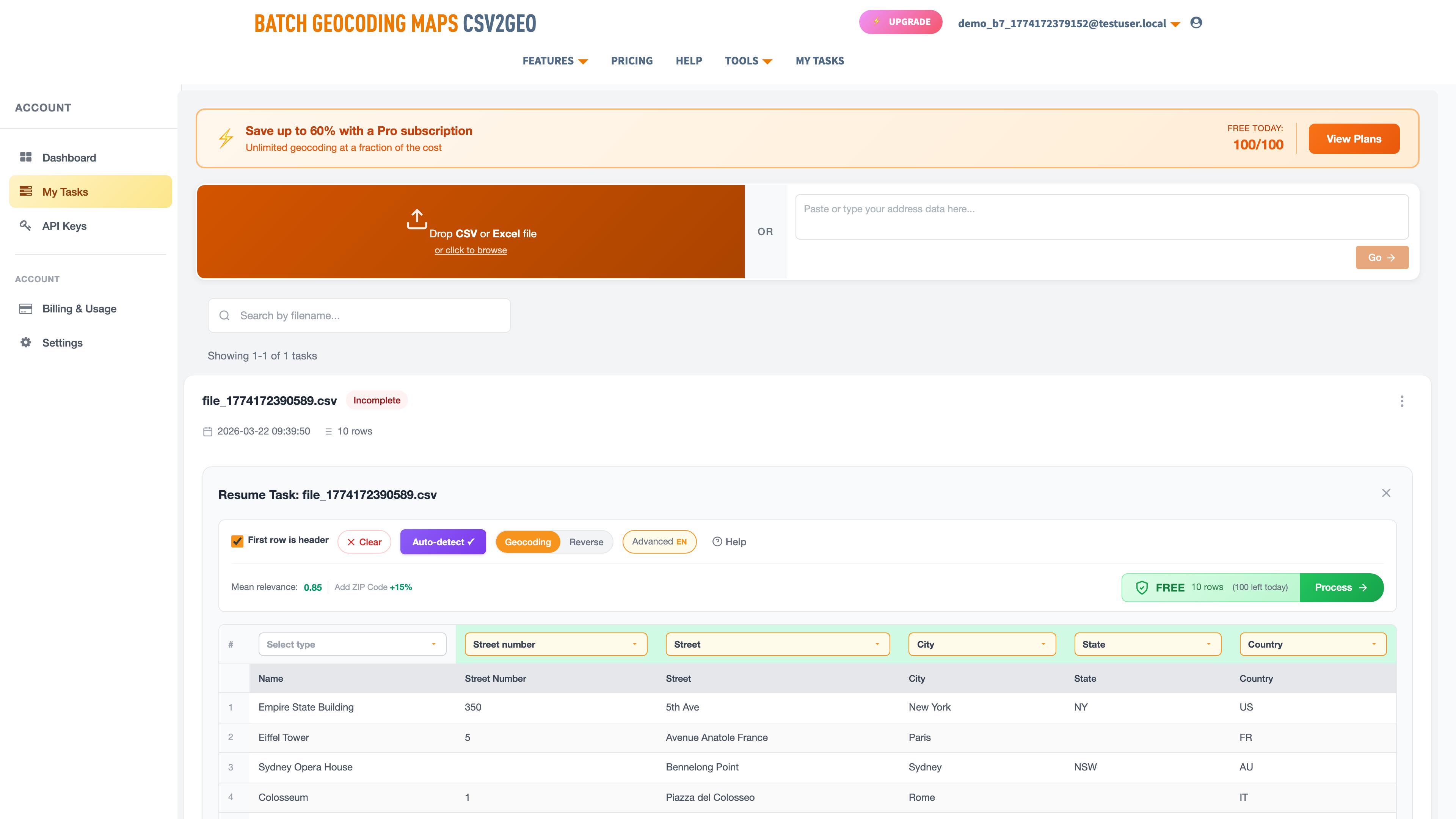
After parsing, CSV2GEO displays your first ten rows in a data grid. An AI module analyzes your column headers and sample data to auto-detect which columns contain street numbers, street names, cities, states, postal codes, and countries.
Review the auto-mapped columns. Green labels above each column show what the system detected. If a mapping is wrong — for example, if it tagged your "Notes" column as a street name — click the label and select the correct type from the dropdown, or set it to "Skip" to ignore that column.
You can combine multiple columns into a single address component. For example, if your street number and street name are in separate columns, map both as "Street" and the geocoder will concatenate them automatically.
Step 3: Preview the First Ten Rows
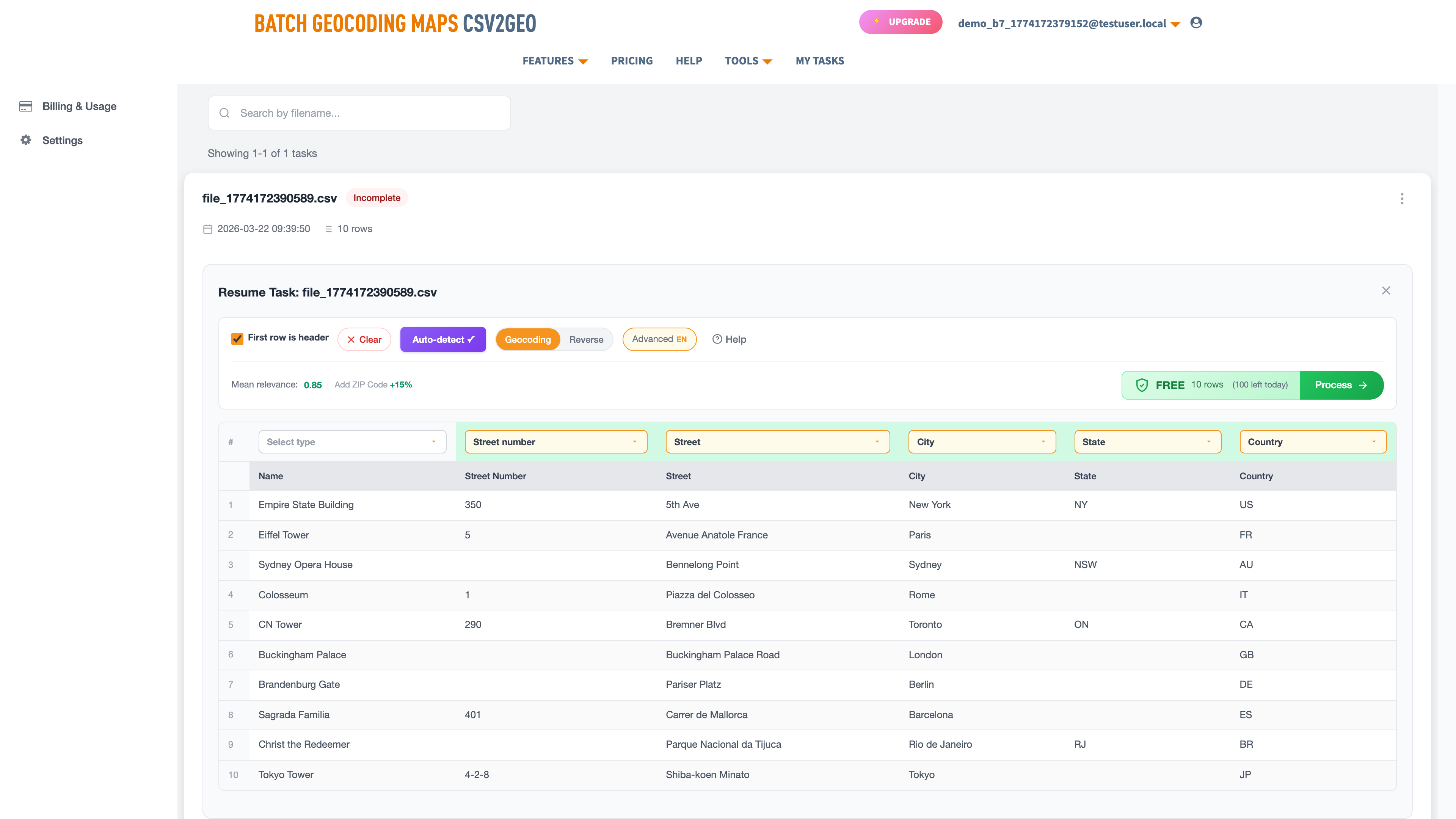
Click "Process Data" to geocode only the first ten rows. This preview lets you verify the results before committing to the full file. You will see your original data with new columns appended: latitude, longitude, formatted address, and a relevance score.
The relevance score ranges from 0 to 1.0. A score of 1.0 means the geocoder matched your address to a specific building — rooftop-level accuracy. Scores between 0.8 and 1.0 are very good. Below 0.8, the match is approximate (usually at the street or postal code level). If most of your preview rows show low scores, go back and check your column mapping.
A map also appears with pins for each geocoded address. This visual check is the fastest way to spot problems — if pins land in the wrong country or cluster in the ocean, something in your column mapping needs adjustment.
Step 4: Process the Full File
If the preview looks correct, click "Get All Data" to geocode every row. Files with 100 rows or fewer are free — no payment, no credit card. For larger files, pricing is shown before you commit so there are no surprises.
Small files (under 50 rows) process instantly in your browser. Larger files are processed in the background. You will receive an email when your geocoded file is ready to download. Processing speed depends on file size — 1,000 rows typically takes under two minutes; 100,000 rows takes about 15 minutes.
Step 5: Download Your Geocoded File
Go to My Tasks to find your completed file. Click the download button to get a CSV with all your original columns plus the geocoded data. You can open this directly in Excel — the coordinates are in standard decimal degree format, ready for any mapping tool.
What the Output Looks Like: Before and After
Here is a real example showing what goes in and what comes out. The input is a simple Excel file with five addresses. The output adds latitude, longitude, parsed address components, and match confidence.
Input (your Excel file):
| # | Name | Street | City | Country |
|---|---|---|---|---|
| 1 | Empire State Building | 350 5th Ave | New York | US |
| 2 | Eiffel Tower | 5 Avenue Anatole France | Paris | FR |
| 3 | Sydney Opera House | Bennelong Point | Sydney | AU |
| 4 | Colosseum | Piazza del Colosseo 1 | Rome | IT |
| 5 | CN Tower | 290 Bremner Blvd | Toronto | CA |
Output (geocoded file):
| Name | Latitude | Longitude | Postcode | Relevance |
|---|---|---|---|---|
| Empire State Building | 40.7484 | -73.9857 | 10118 | 1.0 |
| Eiffel Tower | 48.8584 | 2.2945 | 75007 | 1.0 |
| Sydney Opera House | -33.8568 | 151.2153 | 2000 | 0.95 |
| Colosseum | 41.8902 | 12.4922 | 00184 | 1.0 |
| CN Tower | 43.6426 | -79.3871 | M5V 3L9 | 1.0 |
Notice that the output includes parsed postcodes even though the input did not have them. The geocoder resolves the full address structure, so you get city, state, postcode, and country back as bonus columns — useful for data enrichment beyond just coordinates.
Supported File Formats and Limits
| Format | Extension | Notes |
|---|---|---|
| Excel (modern) | .xlsx | Recommended. Handles Unicode, multiple sheets, large files. Only the first sheet is processed. |
| Excel (legacy) | .xls | Older Excel format. Supported but .xlsx is preferred for files over 65K rows. |
| CSV | .csv | Comma, semicolon, or tab delimited. Auto-detected. Use UTF-8 encoding for international addresses. |
| TSV | .tsv | Tab-separated values. Same as CSV but with tab delimiter. |
Free Tier
100 rows per day. No credit card. No account needed to start. Process your file and download results — completely free.
Paid Plans
Pay-as-you-go for one-time large jobs, or monthly subscriptions for recurring geocoding needs. Pricing shown before you commit.
How Accurate Is Batch Geocoding?
Accuracy depends on two things: the quality of your input addresses and the coverage of the geocoding database in that region. CSV2GEO uses a database of 461 million rooftop-level addresses across 200+ countries, with the deepest coverage in the United States (121M addresses), Brazil (90M), Mexico (30M), France (26M), and Italy (26M).
What the relevance scores mean:
| Score | Match Level | What It Means |
|---|---|---|
| 1.0 | Rooftop | Exact building match. Coordinates point to the specific address. This is the best possible result. |
| 0.8 – 0.99 | Near-rooftop | Very close match. Usually within the correct building or parcel. Minor discrepancy in house number or unit. |
| 0.5 – 0.79 | Street-level | Matched to the correct street but not the exact building. Typically when the house number is missing from the database. |
| Below 0.5 | Area-level | Matched to the city or postal code centroid. Address was too vague or not found at street level. |
Tips for maximizing accuracy:
- Include the country — always. Even for US-only data, an explicit country column eliminates ambiguity.
- Split addresses into separate columns. "Street", "City", "State", "Zip" in their own columns outperforms a single combined address field.
- Use postal codes when available. A correct zip code dramatically narrows the search area and improves match rates.
- Standardize abbreviations. "St" vs "Street", "Ave" vs "Avenue" — the geocoder handles these, but consistency helps.
- Remove non-address data from address columns. Suite numbers, "Attn:" lines, and delivery instructions confuse the parser.
Common Mistakes That Hurt Your Geocoding Results
After processing millions of files, we see the same mistakes over and over. Avoiding these will save you time and significantly improve your match rates.
Mistake 1: Putting the full address in one cell. A single cell containing "350 5th Ave, New York, NY 10118, US" will work, but it forces the geocoder to parse the string itself, which is less reliable than separate columns. If you have the option, split your data into Street, City, State, Zip, and Country columns. The match rate for split-column data is consistently 10-15% higher than single-field input.
Mistake 2: Missing or wrong country codes. This is the single biggest cause of bad results. Without a country, the geocoder has to guess — and "Paris" could be Paris, France or Paris, Texas. Always include a country column. Use ISO 2-letter codes (US, GB, DE, FR) or full country names. Either works.
Mistake 3: Including non-address data in address columns. "Suite 200", "c/o John Smith", "Dock 4 — ring bell" — this kind of text in your street column confuses the parser. Move delivery instructions, suite numbers, and contact names to separate columns and mark them as "Skip" during column mapping.
Mistake 4: Stale or outdated addresses. Street names change, buildings get demolished, postal codes get reassigned. If your address data is more than a few years old, expect some matches to come back with lower confidence. The geocoder will still return the best available match, but the relevance score will reflect the uncertainty.
Mistake 5: Not checking the preview. Skipping Step 3 and processing the entire file without reviewing the first ten rows is risky. A mismatched column mapping — city mapped as street, for example — will geocode your entire file incorrectly. The preview takes ten seconds and can save you from reprocessing thousands of rows.
Excel Upload vs API vs Google Sheets: Which Method to Use
There are several ways to geocode addresses. Here is how they compare for different skill levels and volumes:
| Method | Best For | Skill Level | Free Limit | Speed |
|---|---|---|---|---|
| Excel/CSV upload | Business users, analysts, one-time jobs | No code | 100 rows/day | ~1,000 rows/min |
| REST API | Developers, automated pipelines, apps | Code required | 1,000 req/day | Depends on implementation |
| Python SDK | Data scientists, Jupyter notebooks | Python basics | 1,000 req/day | Batch: up to 10K/request |
| Google Sheets add-on | Quick single lookups | No code | Varies by add-on | Slow (1 row at a time) |
For most people reading this guide, the Excel upload is the right choice. It is the fastest path from "spreadsheet with addresses" to "spreadsheet with coordinates." If you need to geocode programmatically — inside an application, a data pipeline, or a script — the geocoding API with 18 endpoints gives you full control.
What If You Have More Than 100 Rows?
The free tier covers 100 rows per day, which resets every 24 hours. If you have a larger file, you have three options:
- Wait and batch: split your file into 100-row chunks and process one per day. Good for patient people with files under 500 rows.
- Pay-as-you-go: process the entire file at once for a small per-row fee. Pricing is shown before you commit — no surprises, no subscription required.
- Monthly subscription: if you geocode regularly, a subscription gives you the lowest per-row rate and priority processing.
For enterprise volumes (100,000+ rows per month), contact us for custom pricing. We routinely process files with 500,000+ rows for logistics, insurance, and real estate companies.
For Developers: Geocode Excel Data via API
If you prefer to work programmatically, the CSV2GEO geocoding API provides 18 endpoints for forward geocoding, reverse geocoding, batch processing, places search, and administrative boundary lookups. The free tier includes 3,000 API requests per day.
Quick example — geocode an address with curl:
curl "https://csv2geo.com/api/v1/geocode?q=350+5th+Ave,+New+York&country=US&api_key=YOUR_KEY"Python SDK:
from csv2geo import Client

client = Client("YOUR_API_KEY")
result = client.geocode("350 5th Ave, New York", country="US")
print(f"Lat: {result.lat}, Long: {result.lng}, Score: {result.relevance}")
# → Lat: 40.7484, Long: -73.9857, Score: 1.0
Install with pip install csv2geo. Get your free API key at csv2geo.com/api-keys.
Frequently Asked Questions
Can I upload an Excel file directly, or do I need to convert to CSV first?
You can upload .xlsx and .xls files directly. No conversion needed. The system parses Excel files in your browser and reads the first sheet. CSV and TSV files are also supported.
How many addresses can I geocode for free?
100 rows per day with the file upload tool, no credit card required. The API offers 1,000 free requests per day. Both limits reset every 24 hours.
What countries are supported?
CSV2GEO covers 200+ countries with rooftop-level data in 41 countries. The deepest coverage is in the United States (121M addresses), Brazil (90M), Mexico (30M), France (26M), and Italy (26M). Addresses in other countries are matched using fallback strategies.
How long does processing take?
Small files (under 50 rows) process instantly. A file with 1,000 rows takes about two minutes. Large files with 100,000+ rows take 10-20 minutes and process in the background — you receive an email when your file is ready.
Is my data secure?
Your file is parsed locally in your browser before upload. During processing, your data is encrypted in transit and at rest. Processed files are available for download for 30 days, then automatically deleted. We do not sell, share, or use your address data for any purpose other than geocoding.
What if some addresses fail to geocode?
Every row gets a result. If the geocoder cannot find an exact match, it returns the best available match (street-level or area-level) with a lower relevance score. You can filter the output by relevance to identify rows that need manual review.
Can I do reverse geocoding too — coordinates to addresses?
Yes. CSV2GEO supports both forward geocoding (addresses to coordinates) and [Link: reverse geocoding | https://csv2geo.com/reversegeocoding] (coordinates to addresses). Upload a file with latitude and longitude columns, and the system returns street addresses. See our [Link: reverse geocoding guide | https://csv2geo.com/blog/reverse-geocoding-latitude-longitude-to-address] for a full walkthrough.
Do I need to install any software?
No. Everything runs in your browser. There is nothing to install, no plugins, no add-ons. Upload your file, get your results, download them. Works on any modern browser — Chrome, Firefox, Safari, Edge.
Geocode Your Excel File Now
Ready to add coordinates to your spreadsheet? Upload your Excel file and get latitude, longitude, and parsed address data for every row. The first 100 rows are free, every day.
For larger projects, explore pay-as-you-go and subscription plans. For programmatic access, check out the geocoding API with 18 endpoints and 1,000 free requests per day.
Need help with your data? Visit our Help center or contact us — we are happy to assist with column mapping, data formatting, or large file processing.
I.A.
CSV2GEO Creator
Related Articles
Use our batch geocoding tool to convert thousands of addresses to coordinates in minutes. Start with 100 free addresses.
Try Batch Geocoding Free →